Face swap GIF maker
Check Your Browser Before Making a Face Swap GIF
Direct answer: wait until the page says Face engine ready, choose one animated GIF and one clear face photo, and keep the tab open while it processes. If the create button stays disabled, first confirm that the engine is ready and both file previews are visible. If processing stops later, retry with a shorter or smaller GIF before changing the portrait.
Recorded browser check
What we verified on this page
The following results are from a local acceptance run on September 28, 2026. Each browser loaded the current homepage at a 480-pixel viewport. The test recorded the browser version from the installed executable and read the rendered status and layout from the page. It did not claim that every GIF will fit in available memory.
| Browser tested | Engine status | Required browser APIs | 480 px layout |
|---|---|---|---|
| Chrome 154.0.8037.58 | Face engine ready | Canvas, Blob and FileReader present | 480 px page width; no horizontal overflow |
| Edge 154.0.4258.37 | Face engine ready | Canvas, Blob and FileReader present | 480 px page width; no horizontal overflow |
| Firefox | Not tested in this run | Not tested in this run | Not tested in this run |
| Safari | Not tested in this run | Not tested in this run | Not tested in this run |
Four visible gates
Know where the face swap GIF maker stopped
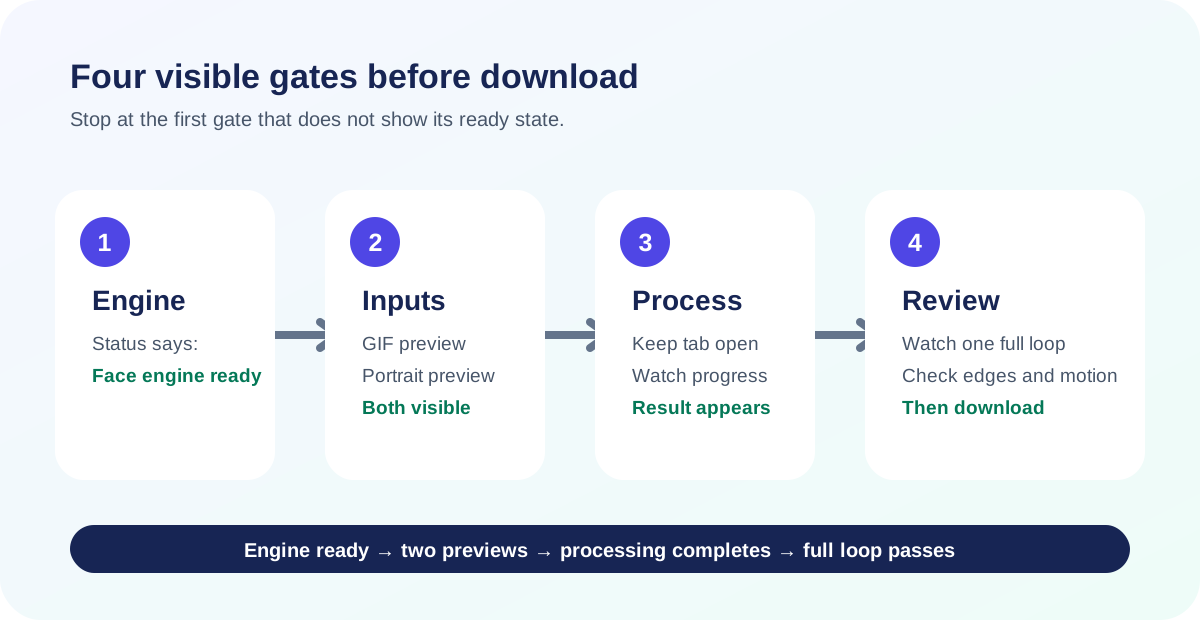
- Engine gate: wait for Face engine ready. If the page instead reports that the engine is unavailable, choosing different files will not fix that loading failure.
- Input gate: select a GIF and a JPG, PNG or WEBP portrait. Both preview areas should show the chosen files before the create button becomes useful.
- Processing gate: leave the tab open while the animation is decoded, processed frame by frame and rebuilt. A large canvas multiplied by many frames can demand much more working memory than the compressed GIF file suggests.
- Review gate: watch the downloaded result through a complete loop. Check face attachment, edge flashes, frame changes and timing instead of judging only the first frame.
Symptom to action
Use the first visible failure to choose the next step
| What you see | Which gate failed | What to do next |
|---|---|---|
| The status never reaches Face engine ready | Engine | Reload once on a current browser. Do not keep swapping input files while the engine is unavailable. |
| The create button remains disabled | Input | Confirm that both the animated GIF and portrait previews are present. |
| Processing stops or the tab becomes unresponsive | Processing | Retry with a shorter or smaller-dimension GIF so fewer full frames must be held and rebuilt. |
| The file downloads but the face jumps | Review | Use a GIF with a larger, steadier and less obstructed target face. |
| The file downloads but color edges look rough | Review | Use simpler lighting and backgrounds; GIF export maps the rebuilt frames back to an indexed palette. |
Browser fact
Why file selection is explicit
MDN documents that FileReader reads files or blobs selected by the user; it cannot read an arbitrary local path. MDN also documents that a canvas can create a Blob for an exported image. Those browser primitives explain the visible choose-file and export stages in a local image workflow.
Direct answers
Face swap GIF maker questions
Why is the create button disabled?
The face engine or one of the two inputs is not ready. Wait for Face engine ready, then confirm that both file previews are visible.
Why can a small GIF still use a lot of memory?
The compressed file size is not the same as its processing footprint. Browser processing expands the animation into pixel frames, works on those frames, and then encodes them again.
Should I close the tab while it is processing?
No. This tool runs in the current browser tab, so keep that tab open until the result preview and download control appear.
Does the Chrome and Edge check prove every device works?
No. It proves only the two recorded desktop browser runs listed above. Firefox, Safari and other devices were not tested in this run.
Related guides
Prepare both files, then review the full loop.
Check your source files · Audit motion and timing · Read the measured workflow
Open the GIF face swap maker