Put face on GIF
Put a Face on a GIF Without Losing the Animation
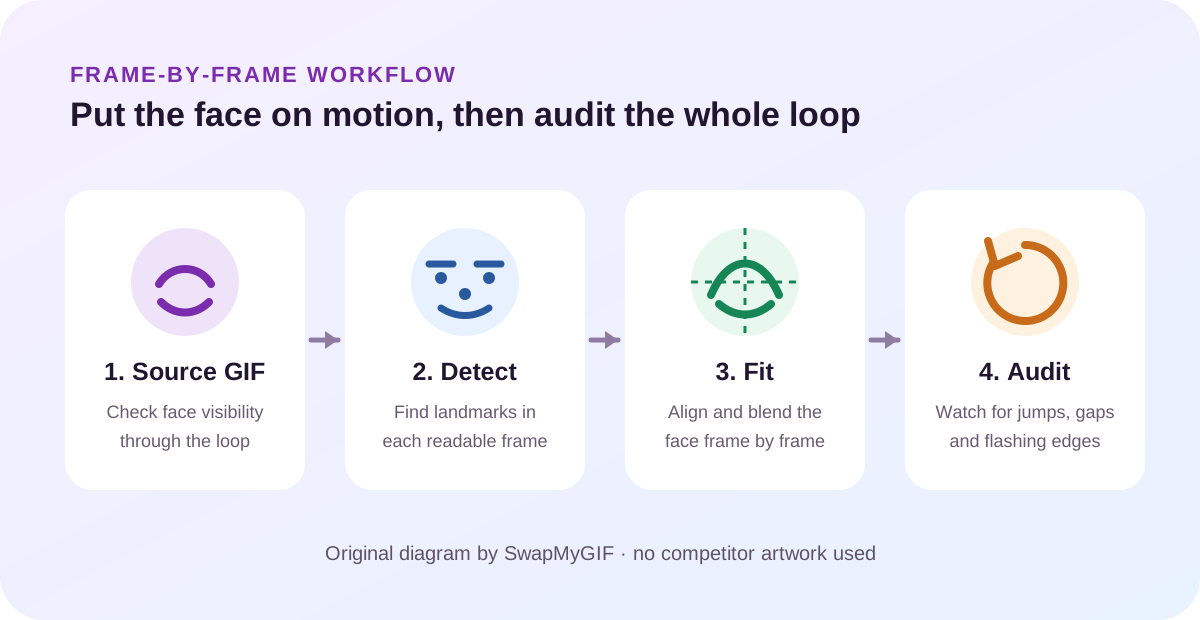
Direct answer: choose an animated GIF and a clear face photo, run the swap, and download the rebuilt GIF. Before keeping it, compare the first and last frames, watch one full loop, and check whether the face stays attached through motion. The tool keeps the source canvas size, frame order and frame timing; the visible face blend and GIF palette are the parts most likely to change.
Use the right inputs
A short workflow that protects motion
- Choose the motion first. Use a GIF where the target face remains visible for most of the loop. A face that repeatedly leaves the frame or turns fully away gives the detector less usable information.
- Match the portrait angle. Choose a bright, unobstructed face photo whose angle is reasonably close to the face in the GIF. This reduces the amount of rotation and scaling needed on every frame.
- Run one local pass. The selected files are read in this tab. The tool detects landmarks, fits the portrait to each detected target and encodes the processed frames back into a GIF.
- Watch the loop, not a still frame. A convincing single frame can still fail during motion. Watch the entire loop for edge flashes, missed frames and sudden jumps before downloading.
Motion audit
What to inspect after you put a face on the GIF
| Visible symptom | What it tells you | First change to try |
|---|---|---|
| The face disappears for one frame | The target was not detected consistently through that motion. | Choose a GIF with a larger, less obstructed target face. |
| The face jumps sideways | Landmark position changed sharply between adjacent frames. | Use steadier motion or a portrait with a closer viewing angle. |
| The edge flashes during the loop | The blend boundary becomes visible as the head moves. | Try a target with less rotation and more even lighting. |
| Skin gradients look stepped | The rebuilt animation has been mapped back to GIF's indexed-color palette. | Prefer simpler backgrounds and flatter lighting around the face. |
| The loop speed feels wrong | Verify the downloaded file rather than judging the progress preview. | Compare one complete source loop with one complete output loop. |
Format fact
Why a rebuilt GIF may change color
GIF stores pixels as indexes into color tables rather than as unrestricted full-color pixels. MDN documents color tables with up to 256 entries and notes that full-color material can show dithering after GIF conversion. That palette step is separate from face detection: a well-positioned face can still show flatter gradients after encoding.
Direct answers
Questions about putting a face on a GIF
How do I put my face on a GIF?
Open the tool, select the animated GIF, select a clear JPG, PNG or WEBP portrait, create the swap, watch the full result loop, and download the GIF if the face remains stable.
Should I judge the result from the first frame?
No. Check the complete loop. Detection gaps, edge flashes and position jumps can appear only after the first frame.
Why does the output keep moving but look less smooth in color?
Motion timing and color representation are different parts of the file. The tool preserves frame ordering and delays, while GIF palette encoding can reduce subtle gradients.
What should I replace first when the face jumps?
Start with the GIF. Choose one with a larger target face, steadier motion and fewer obstructions. Replace the portrait first only when its angle, crop or lighting is the obvious mismatch.
Related guides
Prepare the inputs, then verify the rebuilt loop.
Prepare both source files · Read the measured browser workflow
Open the GIF face swap tool