Add face to GIF · source-first workflow
Add a Face to a GIF
Direct answer: choose an animated GIF with a visible target face, add one clear JPG, PNG or WEBP portrait, then run the swap in your browser and download the rebuilt GIF. If the first result is weak, change the source pair before repeating the same process.
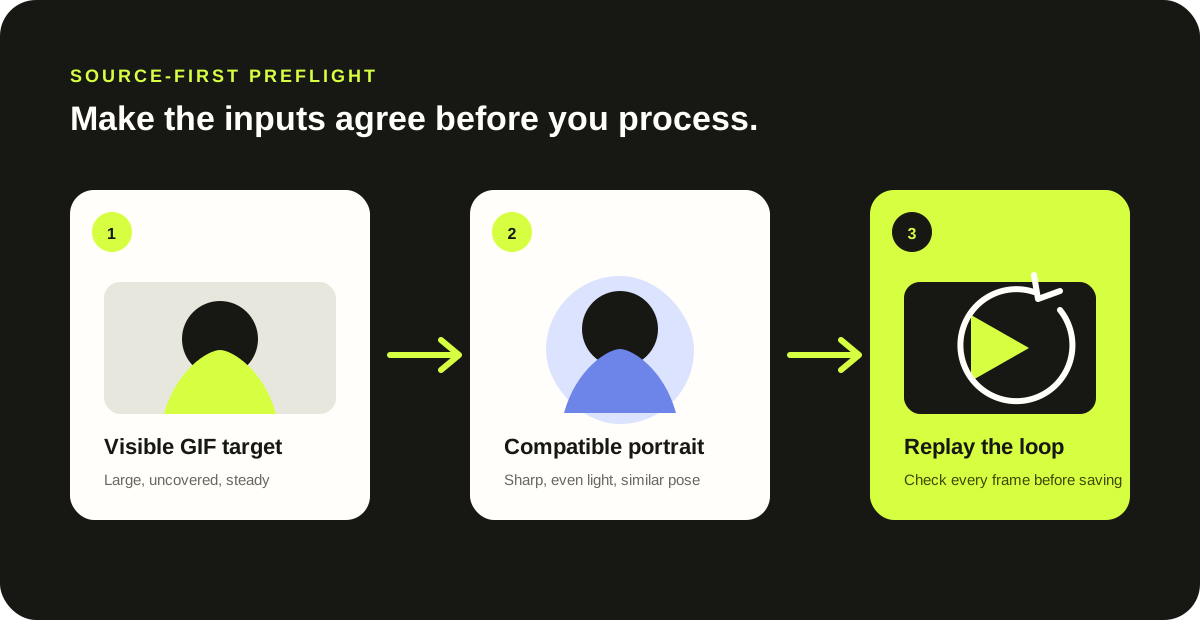
Preflight before processing
Use a source pair that can agree
Visible target
Pause the GIF on several frames. The face should remain large enough to recognize and should not disappear behind text, hands or props.
Compatible portrait
Pick one sharp, evenly lit photo. A portrait facing roughly the same direction as the GIF target gives the fit less angle to reconcile.
Useful motion
Prefer a short loop with steady head movement. Rapid turns and long off-screen sections create frames with little usable face information.
Source: input conditions observed during our own browser acceptance testing. They are selection guidance, not a guarantee for every face or GIF.
Browser workflow
From two local files to one animation
- Select the animated GIF. The tool reads the animation, canvas and frame timing in the page.
- Select one face photo. Use JPG, PNG or WEBP and confirm that the preview shows the intended person.
- Choose the face mode. Replace the largest detected face, or use the all-faces option when the same portrait should appear on every detected person.
- Run the swap. Keep the page open while the browser decodes, detects, blends and rebuilds the frames.
- Replay before downloading. Check the loop for missed detections, jumps and rough edges, then save the GIF.
Do not repeat a weak input
Change the file that caused the symptom
| Result symptom | Change the GIF when | Change the portrait when |
|---|---|---|
| No target face appears | The target is small, covered or absent for much of the loop. | The photo is blurred, heavily cropped or not clearly a face. |
| The face jumps | The target turns quickly, crosses another face or leaves the frame. | The portrait angle is very different from the target pose. |
| The blend looks pasted on | The GIF lighting changes sharply between frames. | The portrait lighting, expression or scale conflicts with the target. |
| The GIF becomes large | The canvas, duration or number of frames is more than you need. | The portrait is not the main cause; trim or resize the GIF first. |
Where the files go
The selected media stays in the browser workflow
The page still uses the network to load its HTML, scripts and face-model files. The selected GIF and portrait are read by browser code and are not sent to a remote face-processing API. Refreshing or closing the page clears the in-page selection and result.
Direct answers
Questions about adding a face to a GIF
Can I add one face to every person in the GIF?
Yes. Use the all-faces mode when you want the same selected portrait applied to every face the tool detects. Use the largest-face mode when only the most prominent person should change.
Will the downloaded file still be animated?
Yes. The browser rebuilds the processed frames into an animated GIF rather than exporting a single still image.
What should I change first when the result looks wrong?
Match the symptom to its source. Use a steadier GIF for jumps or missed frames, and use a sharper portrait with a closer pose and lighting for a poor fit.
Is this the same as the free browser workflow guide?
This page focuses on choosing compatible inputs. For a recorded output report and network-boundary explanation, read the measured browser workflow.
Source pair ready?