Browser codec support
MP4, WebM, MOV, and M4V are accepted only when the current browser can decode the codec inside the file. A filename alone cannot guarantee playback.
Short clips · local conversion
Ready in your browser
Direct answer: choose a short video your browser can play, select GIF frame rate and width, then convert and download. The video stays in this tab. The GIF has no audio and may use more bytes than the source video.
MP4, WebM, MOV, and M4V are accepted only when the current browser can decode the codec inside the file. A filename alone cannot guarantee playback.
The converter seeks through the clip at fixed intervals. A higher rate keeps more motion samples but writes more frames and usually needs more work and bytes.
Each sampled canvas frame is reduced to a GIF palette. Audio is omitted because GIF has no audio track.
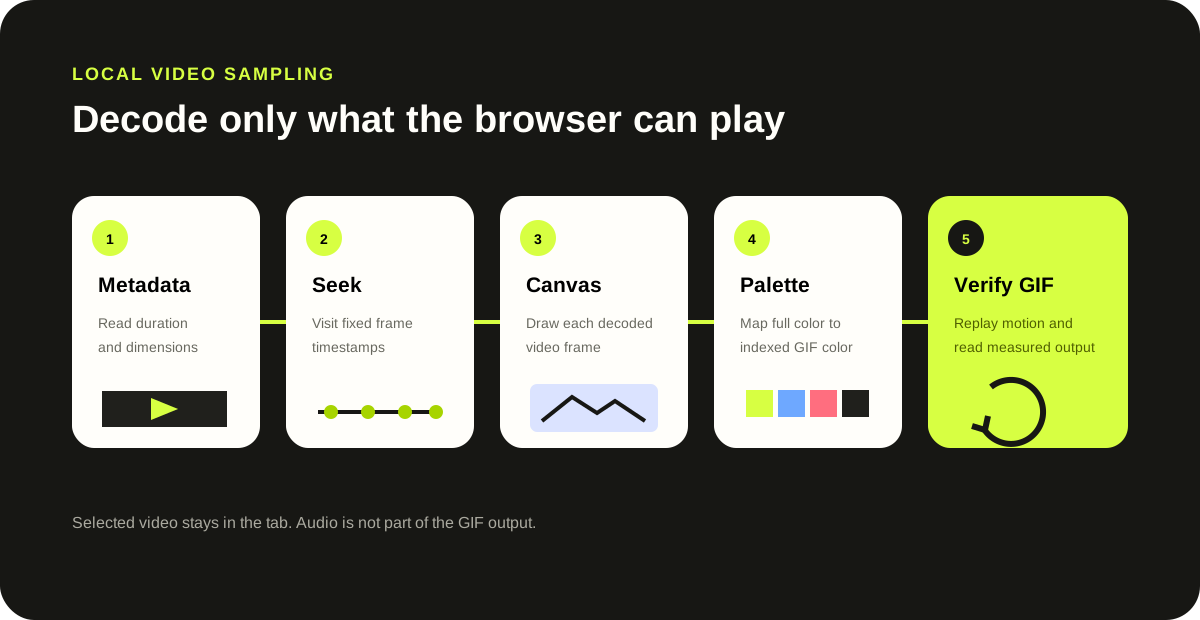
The page accepts a video only after the browser reads its metadata. Codec support varies by browser and operating system. Clips are limited to 10 seconds, 50 MB, and 1280 × 720 input; output is capped at 640 pixels wide. Frame sampling can make motion less smooth, and GIF palette encoding can flatten colors or produce a file larger than the compressed video.
Primary browser methods: MDN loadedmetadata documents when duration and dimensions are available; MDN currentTime documents seeking; MDN drawImage() documents drawing a video frame to Canvas.
Choose a supported video up to 10 seconds, select a frame rate and maximum width, convert it locally, then replay and download the GIF.
Yes when the current browser can decode the video codec inside that MP4. If metadata cannot be read, the page rejects the file instead of pretending it converted.
No. GIF has no audio track. This tool samples visible video frames only.
Modern video compression stores motion efficiently. GIF stores palette-based image frames, so more frames, larger dimensions, and detailed motion can produce more bytes.
No. The selected file is decoded by the current browser and the GIF is encoded in the same tab.