GIF compressor · transparency audit
Does a GIF Compressor Preserve Transparency?
Direct answer: this compressor can write a binary transparent palette entry when a retained frame contains transparent pixels, but it does not preserve the source palette, image blocks, or disposal method. A controlled two-frame test kept the same rendered transparent states while changing disposal from 1 to 2. Always replay the complete result over the background where it will be used.
Controlled transparent fixture
What the production compressor actually changed
| Check | Source GIF | Light output |
|---|---|---|
| Canvas and frames | 16 × 16 · 2 frames | 16 × 16 · 2 frames |
| Recorded delays | 80 ms · 120 ms | 80 ms · 120 ms |
| Transparent index | Present in both frames | Present in both frames |
| Disposal method | 1 · 1 | 2 · 2 |
| Opaque rendered pixels | 48 · 96 | 48 · 96 |
| Exact file size | 175 bytes | 195 bytes |
Method: `scripts/verify-gif-compressor-transparency.mjs` generated a transparent 16 × 16 GIF with a red rectangle followed by a blue rectangle, processed it through the production Light preset in headless Chrome, decoded both files, composited each state, and hashed the rendered RGBA buffers. Both state hashes matched. This is one controlled fixture, not a guarantee for another GIF.
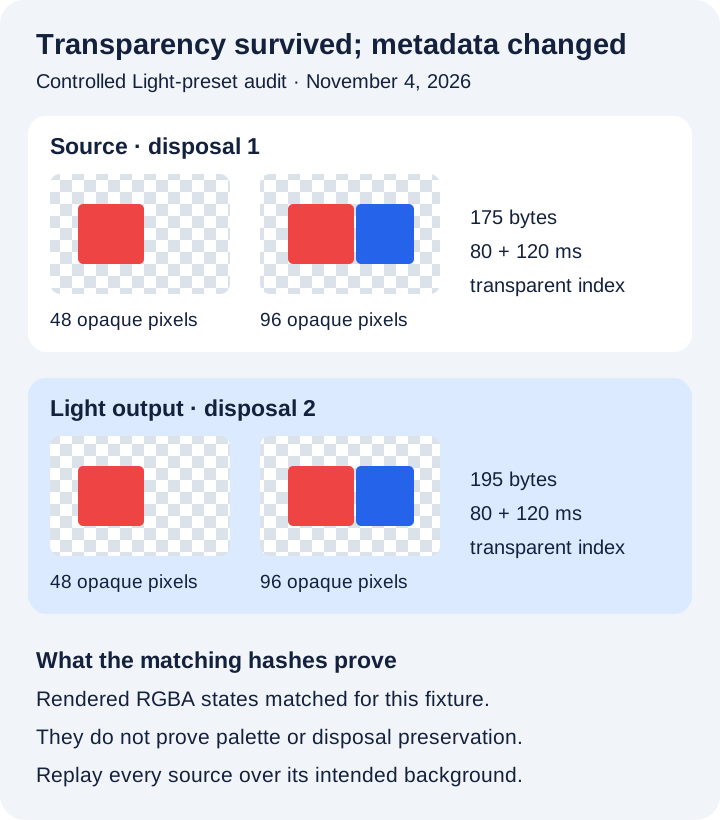
Binary alpha boundary
GIF transparency is an indexed on-or-off choice
GIF does not store a full alpha value for every palette entry. A Graphic Control Extension can identify one color-table index as transparent. Pixels using that index are transparent; the other indexed colors are visible. The GIF89a specification defines that transparent color flag and index.
SwapMyGIF reads the source frames as RGBA pixels, quantizes each retained output frame with one-bit alpha, searches the new palette for an alpha-zero entry, and passes that index to the encoder. This can carry fully transparent pixels into the rebuilt file. It cannot preserve partial alpha because GIF does not provide that per-pixel range, and the interface has no transparency threshold or matte-color control.
Scaling can change edge samples before the one-bit decision. Inspect fine antialiased edges, soft shadows, and light outlines against the final background rather than assuming a transparent preview proves every edge is unchanged.
Animation state boundary
Visible states can match even when disposal metadata changes
A disposal method tells a viewer what to do after displaying a frame. The controlled source used method 1, leaving the current canvas in place. The compressor decoded and composited those source states, then wrote each output frame with method 2. The second output frame already contained the rendered red and blue rectangles, so clearing after the previous full frame still reproduced the same two visible states in this test.
That result is not metadata preservation. The compressor deliberately writes full output-sized frames with disposal 2 and new per-frame palettes. Sources that depend on small image rectangles, restore-to-previous behavior, unusual background colors, or a delicate loop boundary deserve a full replay after rebuilding.
Light is the least disruptive preset for this inspection because it retains dimensions and every decoded frame. Balanced scales the canvas. Smallest also writes alternate frames and combines delays. Review the exact preset reference before testing a transparency problem with a more aggressive preset.
A repeatable transparency check
Test the pixels and the loop, not only the file extension
- Keep the original. Run every preset from the same source so palette and edge changes do not accumulate.
- Start with Light. It keeps the original dimensions and all decoded frames, isolating the rebuild and palette change.
- Use the final background. A white checkerboard, dark page, colored chat bubble, and video layer can reveal different edge halos.
- Replay the complete loop. Look for trails, disappearing objects, flashes, filled transparent regions, and a jump at the loop boundary.
- Compare exact output behavior. A smaller file is not a successful result if transparency or animation state is wrong. Keep the original when the pass does not help.
The compressor does not remove a background, choose a transparent color for you, repair transparency, or guarantee that every source disposal pattern survives unchanged. It only rebuilds the decoded pixels it can read with its current fixed encoder path.
Direct answers
GIF compressor transparency questions
Can this compressor make a background transparent?
No. It has no background-removal tool, color picker, matte control, or transparency threshold. It can only encode transparent pixels that are present after the source frames are decoded and composited.
Does Light preserve the original transparency metadata?
No. Light keeps dimensions and frame count, but it creates new palettes, image data, control blocks, and disposal values.
Why can transparent edges look different?
The frame is redrawn, palette-quantized, and reduced to binary transparency. Scaling and palette choices can change antialiased edge pixels or introduce a visible matte against a different background.
What should I check after compression?
Replay the entire loop over its intended background. Inspect transparent regions, fine edges, moving-object trails, flashes, and the transition from the last frame back to the first.
Transparency is a playback result, not a checkbox.
Start with Light, use the final background, and keep the original if any edge or loop state changes incorrectly.
Run the compressor locally